Using the Power BI Service as a data source in Excel


We want to create reports based on data that we have in a semantic model in the cloud but we still need a certain degree of working with the data instead of just consuming it.
We may also want to just use the data from the semantic model as a data source that we can combine with formulas or even Power Query in Excel.
Why:
Power BI reports are awesome, they offer a vast variety of features that allows its developers to create beautiful and meaningful visualizations. However, reports are known for their rigidity - but sometimes, a little flexibility is needed. In this case, Excel still excels with its ability to import data from various sources.
Currently, Excel lacks the possibility of querying data from a semantic model in the Power BI Service via Power Query. This is due to the tabular model structure of Power BI semantic models in comparison to other data sources.
Quick foreword:
In this tutorial I assume that you already have basic skills in DAX coding. You will need it because the Power BI Service is queried using DAX code to get data out of the semantic model in the cloud.
Step by step:
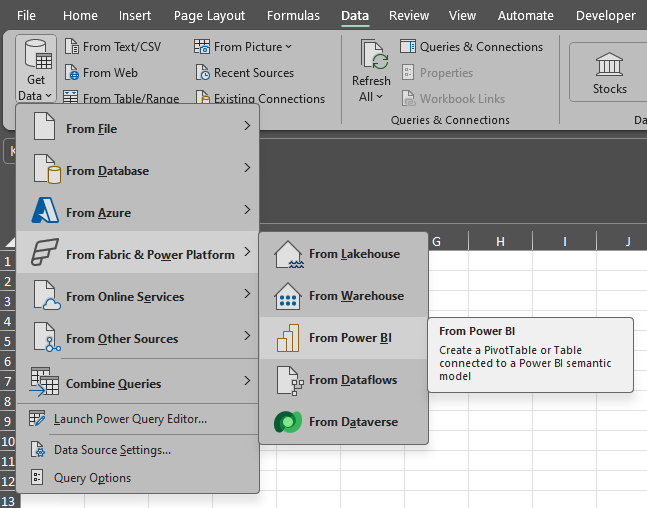
- Open Excel and click on “Data”. Use the “Get Data” menu to navigate to “From Fabric & Power Platform” to find the “From Power BI” option:
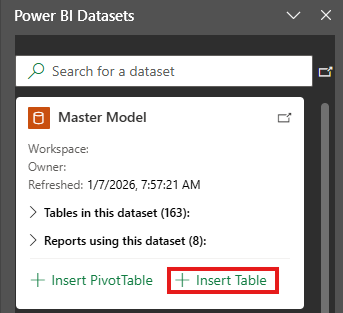
- Klick on the Power BI option and klick on “+ Insert Table” to create the template we will use:
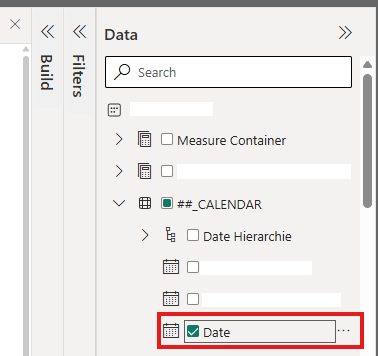
- Import any column you want, choose sample data but the fewer the faster. In this example I just import the date column from my calendar table:
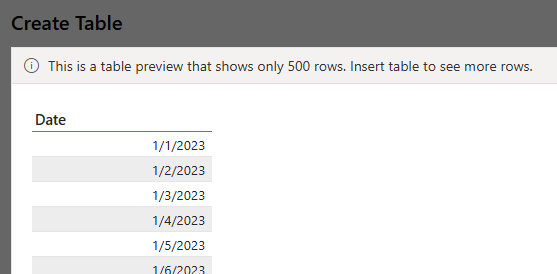
- The preview now shows sample data:
- Use “Insert Table” to import the generated table in Excel:

- Just wait until the loading step completes:
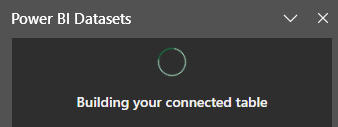
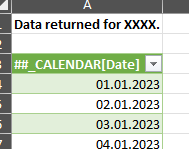
- The sample data should now be imported and visible on a new worksheet in Excel:
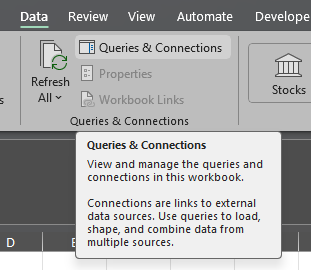
- To see the underlying query, click the “Queries & Connections” button in the “Data” section:
- You will now see a rider pop up on the right side of your Excel window with your connection:

- Right-click the connection you just created to get to the “Properties…” menu:
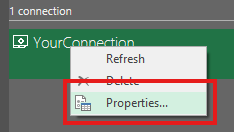
- Here you can choose a distinct name or description you would like your query/table to have ("Connection name:"/"Description:"). But we want to go to the “Definition” section of the Pop-Up-menu:
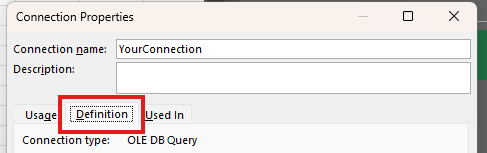
- Search for the “Command text:” box. There you will find your DAX table definition:
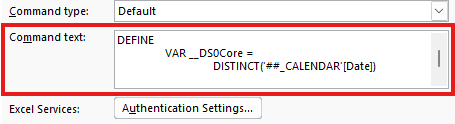
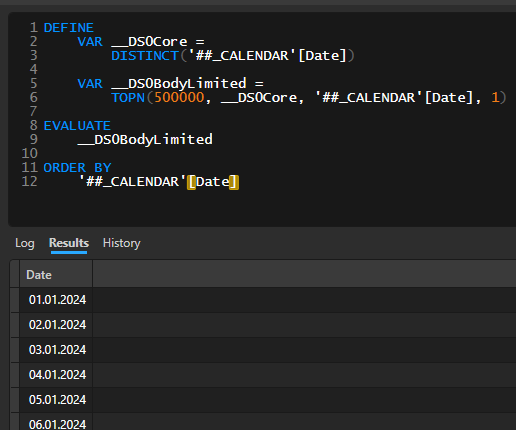
- You may copy that DAX query and paste it into your DAX Studio instance. Executing the query leads to the following result:
- You can delete the DAX code in the “Command text:” box and fill it with your own DAX code. From here you can use the data in your Excel file to create reports that depend on that data. You can even use Power Query to use the imported data and altering it further (e.g. if you want to un-/pivot columns or something like that).
- If you want to refresh the data in the table, you can use multiple methods:
First method
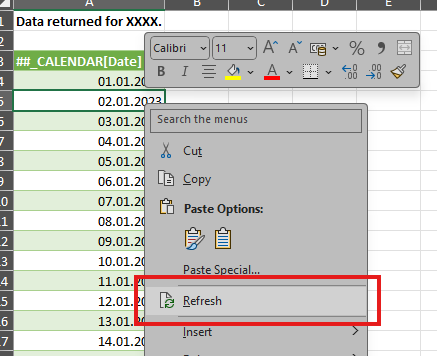
Use right-click to open the context menu and click on the "Refresh" entry:
Second method
Use refresh button in the "Data" rider:
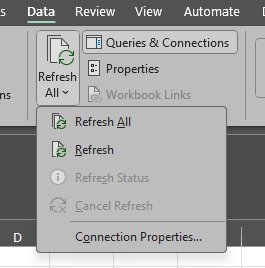
Third method:
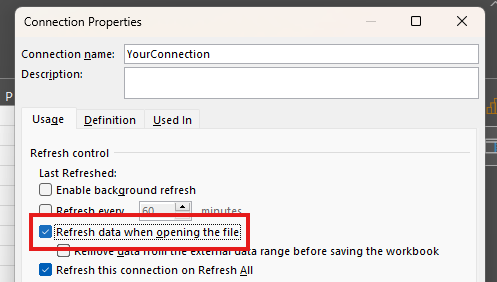
Use the automated refresh every time this file opens up. Repeat step 8-10 to get to the following menu and hit the "Refresh data when opening the file" button:
A few things to consider:
- If you alter the structure of the table like deleting a column, this will irrevocably delete alter the structure of the table. There is no way of recovering the original structure of the table without either pressing “CTRL + Z” or recreating the whole steps.
- If you build a report in Excel, you may do not want that some data sources are automatically refreshed when the third method is activated. In the "Connection Properties" (Step 8-10) you can deactivate the "Refresh this connection on Refresh All" so that it
One last thing:
If your company uses the "Analysis Services" with Power BI Report Server on-premise, you can use the CUBE formulas in Excel to access the data model. With this, importing data and creating Excel-Reports that are more flexible is far more comfortable.
This is a huge advantage of an "on-premise Power BI installation".


